
Showing posts with label stock. Show all posts

Tuesday, November 1, 2016

Samsung SM A300H Stock Rom firmware

Samsung SM A300H Stock Rom firmware


Hello guys welcome to my blog (trickstrickzz.blogspot.com).
HERE
You can Download any Mobile Original(OG) Firmware/Stock Rom.
&
Its free
 So Download your mobile Firmware From Here...


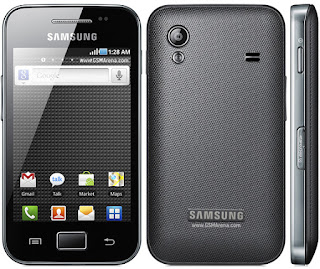
 Samsung SM-A300H


 Network - GSM / HSPA / LTE
SIM-Dual SIM (N-SIM,)
D Type-touchscreen,
Size- 4.5
Resolution -540 x 960 pix
Multi touch Screen-Yes
 D Protection- Gorilla Glass 4
Platform-OS-Android OS, v4.4.4 (KitKat)
Chip set- Qualcomm Snapdragon 410 ( MSM8916)
CPU-Quad-core 1.2 GHz Cortex-A53
memory External-M SD,64 GB (uses SIM 2 slot)Internal-16 GB,1 GB RAM
Camera P -8 MP,  LED flash
Secondary -5 MP
Battery - Non-removable Li-Ion 1900 mAh battery.


Samsung  stock rom download files flash by odin only ..so first download odin flasher for samsung...then flash it via odin.


 Download link attached below

DOWNLOAD

                                                    &
                              See How to Flash your Phone

1.Download and install Samsung USB Driver on your computer.
2. Download & extract zip file in your computer...
3. Power off your Samsung device.
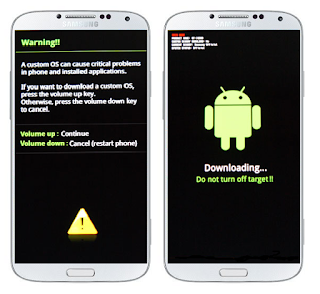
4. Go to Download mode using vol-&home key&power key.on your Samsung Devices.


               See full Details how about to flash click here


Available link for download

Read more »

Lenovo A319 firmware stock rom to unbrick your phone

Lenovo A319 firmware stock rom to unbrick your phone


Hi,


UPDATE: I have already tried and tested this firmware and it is working properly if you are only using NCKBox. If you dont have an NCKBox do not proceed. You might softbrick your phone, but dont worry it is still recoverable.


This firmware is for  Lenovo A319, this is only  a ROM dump. I havent tested it yet, so if you would like to beta test it proceed and download the the file. If the file is working please leave a comment in the comment box.


This firmware is not yet rooted, you can use your favorite rooting application for PC such as vRoot/iRoot/Kingoroot or you can use an APK file which is Kingroot to root your device.


You can fix the following issue in your phone:
1. Bootloop
2. Damaged System UI
3. TP Upgrade only
4. Dead phone but it is detected in computer
5. Remove Gmail Account / Password / Pattern Lock (Alternative Way)
6. Privacy Protection Password Lock up


"DOWNLOAD THESE FILES"
Firmware Here -->Lenovo A319 Part 1
Firmware Here -->Lenovo A319 Part 2
Firmware Here -->Lenovo A319 Part 3
Firmware Here -->Lenovo A319 Part 4
Firmware Here -->Lenovo A319 Part 5
Firmware Here -->Lenovo A319 Part 6
VCOM Driver -->VCOM Manual
Alternative Driver --> AutoInstaller
SPFlashTool --> LatestVersion 


"Use WinRar or 7zip to extract the firmware"
"Extract the files to your desired folder"
"If you encounter error in flashtool, use different version of it."


"I suggest to use 32bit Windows OS for compatibility of the driver"

"You can also use 64bit version, just disable driver signing or driver signature before installing the driver."


Installing Driver with AutoInstaller

First try the Alternative Driver, which is the AutoInstaller. Just open the install.exe then it will automatically install the driver. To fully check if the driver is correctly installed in your computer. 

Follow these steps:
  1. Turn off your phone (always powered off is a must)
  2. Press and hold volume up or down, or you can simple press the two button.
  3. Insert your USB cable without releasing the VOLUME button(s).
  4. In your computer, it must detect your phone and it will install the MTK Preloader or Mediatek USB VCOM driver.
  5. Repeat 1 to 4 if it does not detect your phone.
  6. If MTK Preloader/Mediatek USB VCOM Driver is installed you are good to go in flashing your phone ^_^

Reference Video using Driver Auto Installer (watch in HD)


Installing Manually using VCOM Driver


When installing it manually your phone must be turned off, then connect it to your computer/laptop while pressing VOLUME UP or VOLUME DOWN. This will detect and look for the driver.


 1. This is the first time that you will connect your phone and it will search for the correct driver.

2. Check include this location ... ... and click on browse. Look for USB VCOM Driver and Click on 2K_XP_COM folder if you are using Windows XP or Win7 for Windows 7 and then press OK when you are done picking the right folder for the driver.


3. If the driver is successfully installed MediaTek DA USB VCOM will appear in the New Hardware Wizard.


Video Installing VCOM Driver (please watch in HD)


"Your Phone must be turned off when you are ready to connect and flash your phone"


Flashing
1. Launch FlashTool (flash_tool.exe)
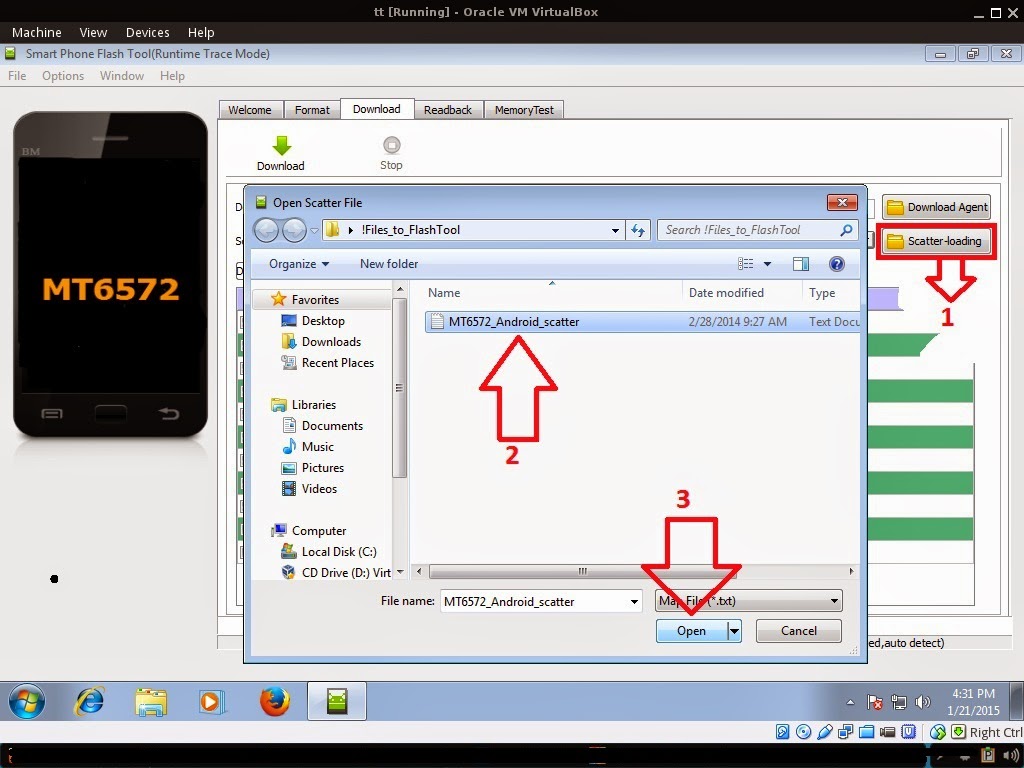
2. In Flashtool, Click on Scatter-Loading, and load your scatter file. (see example below)


Reference Video Using FlashTool version 5.xxx (watch in HD)


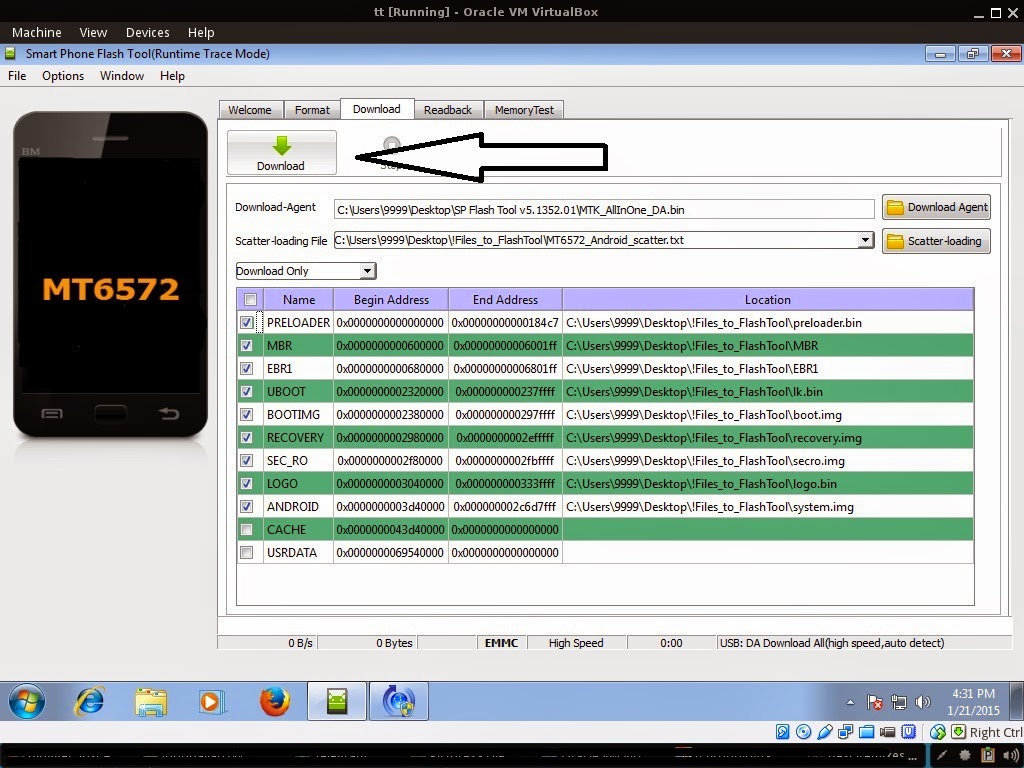
 3. After you load the file, UNCHECK PRELOADER and DSP only (Never flash preloader and DSP if available in firmware), press Press Download to Flash your Phone.


4. After you press Download Follow these steps
  • Turn off your phone (always powered off is a must)
  • Press and HOLD volume UP or Down or you can simply press it simultaneously
  • Insert your USB cable without releasing the VOLUME button(s).
  • Keep on repeating until Flashtool detected your phone.
5. If successfully detected just wait until the progress bar reaches 100%. If your phone did not automatically turn on after flashing, remove battery and USB cable. And put back your battery then turn on your device.


"Hard reset your phone after flashing"


Some workarounds:
If you encounter PMT_Changed error here is what you do:
In Latest version of Flashtool

  1. PMT_CHANGED error occur when firmware is not compatible with your phone. Sometimes your phone has a different board version. You should check it too, if your firmware is compatible with your phone. 
  2. Try Firmware upgrade
  3. Try different version of flashtool
  4. Try to set Format All + Download
  5. Or try Manual Format first then Download.


If you encounter Privacy Protection Password:


  1. Open flash_tool.exe
  2. Load the scatter file
  3. Goto Format Tab
  4. Click on Format except bootloader
  5. Press Play/Start Icon
  6. Then remove battery
  7. Insert the battery again
  8. Insert the USB cable (you should hear a beep on your computer, and it should proceed in formatting.)
  9. After done formatting proceed in Flashing.
  10. Goto Download tab (I assume that you loaded the scatter file already)
  11. Uncheck PRELOADER (this is very important)
  12. Press Download
  13. Then remove battery
  14. Insert Battery again
  15. Insert the USB cable (you should hear a beep on your computer, and it should proceed in flashing or downloading the firmware in your phone.)
  16. Power ON the phone after flashing.
  17. Restore your IMEI.

For Invalid IMEI (Does not work in MT6571 SoC):


  1. Root your phone via vRoot/iRoot/Kingoroot or your preferred method in rooting you device. Your phone must be rooted first.
  2. Download MTKDroidsTool version 2.4.8 and version 2.5.3
  3. Enable your USB debugging in Developer Option (you also need this in rooting your phone via PC)
  4. Okay in your PC -- Open MTKDroidstool version 2.4.8 (Mtkdroidstool.exe) first. Make sure that you connected your phone already.
  5. Still in Mtkdroidstool -- Click ROOT
  6. In your phone -- A pop up dialogue will appear, just grant or allow it.
  7. In your PC -- If root shell is granted/allowed, Click in IMEI/NVRAM tab. If it is grayed out this is the time when you open the MTKDroidsTool version 2.5.3.
  8. Enter your original IMEI
  9. Click Replace
  10. Reboot your phone


FOR DAMAGED BASEBAND or UNKNOWN BASEBAND (Your phone must be rooted first)


1. Make sure you have MTKDROIDSTOOL version 2.4.8 or version 2.5.3 (you can search it in google)

2.  In MTKDroidstool (I assume you launch the tool) -- Click in Root. 
3. In your device -- After you press Root, you need to authorize it. A pop up message will appear. Click Allow/Authorize depends on your root application.
4. In MTKDroidsTool -- Click in IMEI/NVRAM, then click in RESTORE.
5. Then look for the folder where you extracted the NVRAM files.
6. Check if the Baseband is fixed. And if the IMEI is fully restored.
7. If Baseband is still Unknown and IMEI is invalid. Then you need to hard reset first your phone.
8. After hard reset your baseband should be fixed already. (base on my experience)
9. If your baseband is fixed sometimes the IMEI is still invalid. So you need to restore the IMEI.
Available link for download

Read more »

Monday, October 31, 2016

Samsung SM G530H Stock Rom firmware

Samsung SM G530H Stock Rom firmware


hello guys welcome to my blog (trickstrickzz.blogspot.com).

HERE

You can Download any Mobile Original(OG) Firmware/Stock Rom.

&

Its free 

 So Download your mobile Firmware From Here...

 Samsung SM-G530H

Network -GPRS, EDGE, UMTS, HSDPA, HSUPA, HSPA+, LTE


SIM-Single SIM(M-SIM) or Dual SIM (M-SIM, dual stand-by)
Display  - touchscreen, 16M
Size- 5.0(in)

D -Resolution -540 x 960 pixels

Multitouch Screen- Yes

OS- Google Android OS, v4.4.4 (KitKat), to v5.0.2  /v5.1.1

Chipset - Qualcom Snapdragon 410 (MSM8916)

CPU -Quad-core 1.2 GHz( Cortex-A53)

Memory Card slot- microSD, up to 64 GB

Internal- 8 GB, 1 GB RAM
Camera-P camera 8 MP, 

Secondary - 5 MP
Sound - Alert types Vibration; MP3, ringtones
Loudspeaker -Yes
3.5mm jack-Yes

WLAN -Wi-Fi,Wi-Fi Direct, hotspot
Bluetooth -v4.0,
 

USB-microUSB v2.0

Battery  - Removable Li-Ion 2600 mAh battery


Samsung  stock rom download files flash by odin only ..so 1st download odin flasher for samsung...then flash it via odin.


 Download link attached below

DOWNLOAD 

&  

See How to Flash your Phone

1.Download and install Samsung USB Driver on your computer. 

2. Download & extract zip file in your computer...

3. Power off your Samsung device.

4. Go to Download mode using vol-&home key&power key at same time.on your Samsung Devices.


See full Details how about to flash click here


Available link for download

Read more »

Sunday, October 30, 2016

Samsung GT S5830 Stock Rom firmware

Samsung GT S5830 Stock Rom firmware


Hello guys welcome to my blog (trickstrickzz.blogspot.com).
HERE
You can Download any Mobile Original(OG) Firmware/Stock Rom.
&
Its free
 So Download your mobile Firmware From Here...

 Samsung GT-S5830


Samsung s5830 is gsm &HSPA technology .samsung announced this device on  2011.available in market  2012.7 body weight -97.5grm only.CPU-832mhz(arm-11)GPU-adreno200&.single sim device.Card Slot-MicroSD-32gb(upto)&Internal-180mb.RAM-280mb.Primary Camera-5mp&secondary-no.OS-Google Android(2.3.5 Gingerbred) Battery-1200mah( removable).multi touch-yes,Display TFT display,3.5 inch display-touch wiz ui v3.0 touch sensitive ui D Proctection-gorila glass.Wifi- available.GPS-available....It is very good very value for money product..


Samsung  stock rom download files flash by odin only ..so 1st download odin flasher for samsung...then flash it via odin.
  I am not responsible any Damage on Your device.so backup your phone first.then flash your Samsung device via odin..


 Download link attached below

DOWNLOAD


See How to Flash your Phone

1.Download and install Samsung USB Driver on your computer. 


2. Download & extract zip file in your computer..


3. Power off your Samsung device.


4. Go to Download mode using vol-&home key&power key.on your Samsung Devices.


5.In the Download mode you will be see Download mode.

 
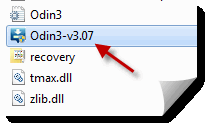
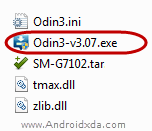
6:-Download & extract Odin on your computer.After Downloading you will be able to see this following files.

7:-Now open Odin 3 &connect your phone to the computer.
8:-Once you have connected phone to the computer,Odin Will automatically recognize device and show added message at the left panel.


See full Details how about to flash click here 


Available link for download

Read more »

Micromax A065 New Version Flash File Stock Rom 100 Tested

Micromax A065 New Version Flash File Stock Rom 100 Tested


Micromax A065 New Version Flash File 100% Tested Free Download 

Micromax A065 Flash File,Micromax A065 Stock Rom,Micromax A065 Firmware,Micromax A065  Flash File Download,Micromax A065  Stock Rom Download,Micromax A065  Firmware Download,

Micromax A065

Micromax A065 Stock Rom

Model: A065

Country: India

Version: Android 4.4.2

How to Flash: Read Instructions.

Rom Size: 512 MB

Download
Micromax_A065_SW_V1.0_HW_V1.0_270614.zip - 512 MB 


Available link for download

Read more »

Friday, October 28, 2016

Samsung galaxy core 2 gt355h stock rom firmware

Samsung galaxy core 2 gt355h stock rom firmware


Samsung core 2 gt355h stock rom download files flash by odin only ..so 1st download odin flasher for samsung...then flash it via odin.

   Download link attached below


 DOWNLOAD


Available link for download

Read more »

Alcatel One Touch 4033E stock rom firmware to unbrick your phone

Alcatel One Touch 4033E stock rom firmware to unbrick your phone


Hi,


This firmware is for  Alcatel One Touch 4033E, I already  tried and tested this file.


This firmware is not yet rooted, you can use your favorite rooting application for PC such as vRoot/iRoot/Kingoroot or you can use an APK file which is Kingroot to root your device.


You can fix the following issue in your phone:
1. Bootloop
2. Damaged System UI
3. TP Upgrade only
4. Dead phone but it is detected in computer
5. Remove Gmail Account / Password / Pattern Lock (Alternative Way)
6. Privacy Protection Password Lock up


"DOWNLOAD THESE FILES"
Firmware Here -->Alcatel One Touch 4033e Part 1
Firmware Here -->Alcatel One Touch 4033e Part 2
Firmware Here -->Alcatel One Touch 4033e Part 3
Firmware Here -->Alcatel One Touch 4033e Part 4
VCOM Driver -->VCOM Manual
Alternative Driver --> AutoInstaller
SPFlashTool --> LatestVersion 


"Use WinRar or 7zip to extract the firmware"
"Extract the files to your desired folder"
"If you encounter error in flashtool, use different version of it."


"I suggest to use 32bit Windows OS for compatibility of the driver"

"You can also use 64bit version, just disable driver signing or driver signature before installing the driver."


Installing Driver with AutoInstaller

First try the Alternative Driver, which is the AutoInstaller. Just open the install.exe then it will automatically install the driver. To fully check if the driver is correctly installed in your computer. 

Follow these steps:
  1. Turn off your phone (always powered off is a must)
  2. Press and hold volume up or down, or you can simple press the two button.
  3. Insert your USB cable without releasing the VOLUME button(s).
  4. In your computer, it must detect your phone and it will install the MTK Preloader or Mediatek USB VCOM driver.
  5. Repeat 1 to 4 if it does not detect your phone.
  6. If MTK Preloader/Mediatek USB VCOM Driver is installed you are good to go in flashing your phone ^_^

Reference Video using Driver Auto Installer (watch in HD)


Installing Manually using VCOM Driver


When installing it manually your phone must be turned off, then connect it to your computer/laptop while pressing VOLUME UP or VOLUME DOWN. This will detect and look for the driver.


 1. This is the first time that you will connect your phone and it will search for the correct driver.

2. Check include this location ... ... and click on browse. Look for USB VCOM Driver and Click on 2K_XP_COM folder if you are using Windows XP or Win7 for Windows 7 and then press OK when you are done picking the right folder for the driver.


3. If the driver is successfully installed MediaTek DA USB VCOM will appear in the New Hardware Wizard.


Video Installing VCOM Driver (please watch in HD)


"Your Phone must be turned off when you are ready to connect and flash your phone"


Flashing
1. Launch FlashTool (flash_tool.exe)
2. In Flashtool, Click on Scatter-Loading, and load your scatter file. (see example below)


Reference Video Using FlashTool version 5.xxx (watch in HD)


 3. After you load the file FILL CUSTPACK, MOBILE_INFO, and other file. UNCHECK PRELOADER  only (Never flash preloader and if available in firmware), If you cannot proceed  in flashing without PRELOADER include PRELOADER. Proceed at your own risk, press Press Download to Flash your Phone.


4. After you press Download Follow these steps
  • Turn off your phone (always powered off is a must)
  • Press and HOLD volume UP or Down or you can simply press it simultaneously
  • Insert your USB cable without releasing the VOLUME button(s).
  • Keep on repeating until Flashtool detected your phone.
5. If successfully detected just wait until the progress bar reaches 100%. If your phone did not automatically turn on after flashing, remove battery and USB cable. And put back your battery then turn on your device.


"Hard reset your phone after flashing"


Some workarounds:
If you encounter PMT_Changed error here is what you do:
In Latest version of Flashtool

  1. PMT_CHANGED error occur when firmware is not compatible with your phone. Sometimes your phone has a different board version. You should check it too, if your firmware is compatible with your phone. 
  2. Try Firmware upgrade
  3. Try different version of flashtool
  4. Try to set Format All + Download
  5. Or try Manual Format first then Download.


If you encounter Privacy Protection Password:


  1. Open flash_tool.exe
  2. Load the scatter file
  3. Goto Format Tab
  4. Click on Format except bootloader
  5. Press Play/Start Icon
  6. Then remove battery
  7. Insert the battery again
  8. Insert the USB cable (you should hear a beep on your computer, and it should proceed in formatting.)
  9. After done formatting proceed in Flashing.
  10. Goto Download tab (I assume that you loaded the scatter file already)
  11. Uncheck PRELOADER (this is very important)
  12. Press Download
  13. Then remove battery
  14. Insert Battery again
  15. Insert the USB cable (you should hear a beep on your computer, and it should proceed in flashing or downloading the firmware in your phone.)
  16. Power ON the phone after flashing.
  17. Restore your IMEI.

For Invalid IMEI (Does not work in MT6571 SoC):


  1. Root your phone via vRoot/iRoot/Kingoroot or your preferred method in rooting you device. Your phone must be rooted first.
  2. Download MTKDroidsTool version 2.4.8 and version 2.5.3
  3. Enable your USB debugging in Developer Option (you also need this in rooting your phone via PC)
  4. Okay in your PC -- Open MTKDroidstool version 2.4.8 (Mtkdroidstool.exe) first. Make sure that you connected your phone already.
  5. Still in Mtkdroidstool -- Click ROOT
  6. In your phone -- A pop up dialogue will appear, just grant or allow it.
  7. In your PC -- If root shell is granted/allowed, Click in IMEI/NVRAM tab. If it is grayed out this is the time when you open the MTKDroidsTool version 2.5.3.
  8. Enter your original IMEI
  9. Click Replace
  10. Reboot your phone


FOR DAMAGED BASEBAND or UNKNOWN BASEBAND (Your phone must be rooted first)


1. Make sure you have MTKDROIDSTOOL version 2.4.8 or version 2.5.3 (you can search it in google)

2.  In MTKDroidstool (I assume you launch the tool) -- Click in Root. 
3. In your device -- After you press Root, you need to authorize it. A pop up message will appear. Click Allow/Authorize depends on your root application.
4. In MTKDroidsTool -- Click in IMEI/NVRAM, then click in RESTORE.
5. Then look for the folder where you extracted the NVRAM files.
6. Check if the Baseband is fixed. And if the IMEI is fully restored.
7. If Baseband is still Unknown and IMEI is invalid. Then you need to hard reset first your phone.
8. After hard reset your baseband should be fixed already. (base on my experience)
9. If your baseband is fixed sometimes the IMEI is still invalid. So you need to restore the IMEI.
10.  To restore IMEI follow Step 1-4, but you should not restore. You should fill the IMEI then click REPLACE. Then reboot your phone.  VOILA! I hope the phone is fully working :)

I hope this tutorial help you. Please drop a comment if something is not clear to you.

Available link for download

Read more »

Monday, October 24, 2016

S5570XWKTN Android 2 3 6 for T Mobile Samsung Galaxy Mini S5570 Stock ROM

S5570XWKTN Android 2 3 6 for T Mobile Samsung Galaxy Mini S5570 Stock ROM


T-Mobile Samsung Galaxy Mini S5570  appears lately got the latest official firmware update this month. The firmware build number is S5570XWKTN. Although, most features are the same as of the newest 2.3.6 firmware build like the swipe lockscreen but one thing we notice is that it adds-up something new like the Received Call, Missed Call and Message Notification, another cool thing is the USB utilities in Wireless and networks settings - that makes the phone connect its sd card to the computer without installing any USB driver. Just grab the stock ROM below and try it on yourself to know more of new features on this latest S5570XWKTN Android 2.3.6 Gingerbread firmware.

S66570Xwktn Incoming, receives call and message notification featuresS66570Xwktn swipe lockscreen features

S66570Xwktn USB utility feature

Country: Netherlands T-Mobile
Product Code: GT-S5570EGATNL
Latest firmware: S5570XWKTN/S5570OXXKTB/S5570XWKT6/S5570XWKTN
Firmware info: PDA: S5570XWKTN | CSC: S5570OXXKTB | PHONE: S5570XWKT6
Version: Android 2.3.6 Gingerbread
Build date: 3/14/2012 10:42:09 AM

Build properties:

Code:

# begin build properties


# autogenerated by buildinfo.sh

ro.build.id=GINGERBREAD

ERBREAD.XWKTN
ro.build.version.increm

ro.build.display.id=GIN
Gental=XWKTN
ro.build.version.sdk=10

d.version.release=2.3.6
ro.bu

ro.build.version.codename=REL
ro.bui
lild.date=Thu Mar 8 13:01:36 CET 2012

ype=user
ro.build.user=root

ro.build.date.utc=1331208096
ro.build.
tro.build.host=DELLBUILDER03
ro.build.tags=release-keys

oduct.name=GT-S5570
ro.p

ro.product.brand=samsung
ro.product.model=GT-S5570
ro.p
rroduct.device=GT-S5570
ro.product.board=GT-S5570

ice
ro.build.product=GT-S5570
ro.product.cpu.abi=arme

# ro.build.product is obsolete; use ro.product.de
vabi
ro.product.manufacturer=samsung
ro.product.locale.language=en
ro.product.locale.region=GB

print
ro.build.de

ro.wifi.channels=
ro.board.platform=msm7k
# Do not try to parse ro.build.description or .finge
rscription=GT-S5570-user 2.3.6 GINGERBREAD XWKTN release-keys

AD/XWKTN:user/release-keys
# Samsung Specific Properties
ro.build.PDA=S5570XWKTN
ro.buil

ro.build.fingerprint=samsung/GT-S5570/GT-S5570:2.3.6/GINGERBR
Ed.hidden_ver=S5570XWKTN
ro.build.changelist=1019135
ro.build.buildtag=


# end build properties


Available link for download

Read more »

Alcatel One Touch Star 6010x firmware stock rom to unbrick your phone

Alcatel One Touch Star 6010x firmware stock rom to unbrick your phone


Hi,


This firmware is for  Alcatel One Touch Star 6010x, I already  tried and tested this file.


This firmware is not yet rooted, you can use your favorite rooting application for PC such as vRoot/iRoot/Kingoroot or you can use an APK file which is Kingroot to root your device.


You can fix the following issue in your phone:
1. Bootloop
2. Damaged System UI
3. TP Upgrade only
4. Dead phone but it is detected in computer
5. Remove Gmail Account / Password / Pattern Lock (Alternative Way)
6. Privacy Protection Password Lock up


"DOWNLOAD THESE FILES"
Firmware Here -->Alcatel One Touch Star 6010x
VCOM Driver -->VCOM Manual
Alternative Driver --> AutoInstaller
SPFlashTool --> LatestVersion 


"Use WinRar or 7zip to extract the firmware"
"Extract the files to your desired folder"
"If you encounter error in flashtool, use different version of it."


"I suggest to use 32bit Windows OS for compatibility of the driver"

"You can also use 64bit version, just disable driver signing or driver signature before installing the driver."


Installing Driver with AutoInstaller

First try the Alternative Driver, which is the AutoInstaller. Just open the install.exe then it will automatically install the driver. To fully check if the driver is correctly installed in your computer. 

Follow these steps:
  1. Turn off your phone (always powered off is a must)
  2. Press and hold volume up or down, or you can simple press the two button.
  3. Insert your USB cable without releasing the VOLUME button(s).
  4. In your computer, it must detect your phone and it will install the MTK Preloader or Mediatek USB VCOM driver.
  5. Repeat 1 to 4 if it does not detect your phone.
  6. If MTK Preloader/Mediatek USB VCOM Driver is installed you are good to go in flashing your phone ^_^

Reference Video using Driver Auto Installer (watch in HD)


Installing Manually using VCOM Driver


When installing it manually your phone must be turned off, then connect it to your computer/laptop while pressing VOLUME UP or VOLUME DOWN. This will detect and look for the driver.


 1. This is the first time that you will connect your phone and it will search for the correct driver.

2. Check include this location ... ... and click on browse. Look for USB VCOM Driver and Click on 2K_XP_COM folder if you are using Windows XP or Win7 for Windows 7 and then press OK when you are done picking the right folder for the driver.


3. If the driver is successfully installed MediaTek DA USB VCOM will appear in the New Hardware Wizard.


Video Installing VCOM Driver (please watch in HD)


"Your Phone must be turned off when you are ready to connect and flash your phone"


Flashing
1. Launch FlashTool (flash_tool.exe)
2. In Flashtool, Click on Scatter-Loading, and load your scatter file. (see example below)


Reference Video Using FlashTool version 5.xxx (watch in HD)


 3. After you load the file, FILL CUSTPACK, MOBILE_INFO, and other file. UNCHECK PRELOADER  only (Never flash preloader and if available in firmware), If you cannot proceed  in flashing without PRELOADER include PRELOADER. Proceed at your own risk, press Press Download to Flash your Phone.


4. After you press Download Follow these steps
  • Turn off your phone (always powered off is a must)
  • Press and HOLD volume UP or Down or you can simply press it simultaneously
  • Insert your USB cable without releasing the VOLUME button(s).
  • Keep on repeating until Flashtool detected your phone.
5. If successfully detected just wait until the progress bar reaches 100%. If your phone did not automatically turn on after flashing, remove battery and USB cable. And put back your battery then turn on your device.


"Hard reset your phone after flashing"


Some workarounds:
If you encounter PMT_Changed error here is what you do:
In Latest version of Flashtool

  1. PMT_CHANGED error occur when firmware is not compatible with your phone. Sometimes your phone has a different board version. You should check it too, if your firmware is compatible with your phone. 
  2. Try Firmware upgrade
  3. Try different version of flashtool
  4. Try to set Format All + Download
  5. Or try Manual Format first then Download.


If you encounter Privacy Protection Password:


  1. Open flash_tool.exe
  2. Load the scatter file
  3. Goto Format Tab
  4. Click on Format except bootloader
  5. Press Play/Start Icon
  6. Then remove battery
  7. Insert the battery again
  8. Insert the USB cable (you should hear a beep on your computer, and it should proceed in formatting.)
  9. After done formatting proceed in Flashing.
  10. Goto Download tab (I assume that you loaded the scatter file already)
  11. Uncheck PRELOADER (this is very important)
  12. Press Download
  13. Then remove battery
  14. Insert Battery again
  15. Insert the USB cable (you should hear a beep on your computer, and it should proceed in flashing or downloading the firmware in your phone.)
  16. Power ON the phone after flashing.
  17. Restore your IMEI.

For Invalid IMEI (Does not work in MT6571 SoC):


  1. Root your phone via vRoot/iRoot/Kingoroot or your preferred method in rooting you device. Your phone must be rooted first.
  2. Download MTKDroidsTool version 2.4.8 and version 2.5.3
  3. Enable your USB debugging in Developer Option (you also need this in rooting your phone via PC)
  4. Okay in your PC -- Open MTKDroidstool version 2.4.8 (Mtkdroidstool.exe) first. Make sure that you connected your phone already.
  5. Still in Mtkdroidstool -- Click ROOT
  6. In your phone -- A pop up dialogue will appear, just grant or allow it.
  7. In your PC -- If root shell is granted/allowed, Click in IMEI/NVRAM tab. If it is grayed out this is the time when you open the MTKDroidsTool version 2.5.3.
  8. Enter your original IMEI
  9. Click Replace
  10. Reboot your phone


FOR DAMAGED BASEBAND or UNKNOWN BASEBAND (Your phone must be rooted first)


1. Make sure you have MTKDROIDSTOOL version 2.4.8 or version 2.5.3 (you can search it in google)

2.  In MTKDroidstool (I assume you launch the tool) -- Click in Root. 
3. In your device -- After you press Root, you need to authorize it. A pop up message will appear. Click Allow/Authorize depends on your root application.
4. In MTKDroidsTool -- Click in IMEI/NVRAM, then click in RESTORE.
5. Then look for the folder where you extracted the NVRAM files.
6. Check if the Baseband is fixed. And if the IMEI is fully restored.
7. If Baseband is still Unknown and IMEI is invalid. Then you need to hard reset first your phone.
8. After hard reset your baseband should be fixed already. (base on my experience)
9. If your baseband is fixed sometimes the IMEI is still invalid. So you need to restore the IMEI.
10.  To restore IMEI follow Step 1-4, but you should not restore. You should fill the IMEI then click REPLACE. Then reboot your phone.  VOILA! I hope the phone is fully working :)

I hope this tutorial help you. Please drop a comment if something is not clear to you.

Available link for download

Read more »